Showing posts with label iphone. Show all posts

Sunday, March 29, 2015

6 Best and Free Racing Games for iPhone

Racing games are so popular that it seems as if the need for speed is ingrained in our DNA. From hyper-realistic racing simulators to arcade smashfests and everything else in between, here are 10 best and free racing games for iPhone users.

Real Racing 3

Where better to start than with the iPhone's slickest and most realistic racer, the aptly titled Real Racing 3? Ditching the premium price model of earlier entries, the third offering tackles a free-to-play approach with tact, allowing you to spin through hundreds of events with dozens of licensed cars sans a required entry fee. Pumping in a few bucks adds helpful variety, though!

Wednesday, March 25, 2015

8 Tips to Clear Out Space On Your iPhone and iPad

A class action lawsuit was recently raised against Apple because their products very rarely have the storage space they are advertised with. For example, a 16GB iPhone will not have 16GB for you to use when you first set up the phone. As we download apps, sync music and capture photos, the amount of storage space available dwindles until one day we get the dreaded Storage Is Full message. But how can we free up space on our tech when there’s so much we need to store on them?

1. Check Your Usage

To figure of which of your apps is taking up most of those GB’s simply tap on Settings > General > Usage > Manage Storage and see which of your apps is taking up the most space. As you can see, most of my storage is taken up with music, photos and podcasts. Luckily our next few tips will help me free up some extra iPhone and iPad space!

Tuesday, March 24, 2015

10 iPhone Tricks to Expand Your iPhone Battery Life

No doubt, iPhone is the most popular smartphone in the world. However, despite the phone’s amazing functionality and impressive hardware, iPhone battery life can run out pretty quickly if you leave some features running all the time. So here are ten simple tips to help you get the most out of your iPhone battery life.

Don’t play music

To extend your iPhone battery life, you’ll want to minimize the amount of work your iPhone is performing. The first and easiest way to do this is to turn off your music. Even when your screen is off, playing music drains your battery fast. If you can’t get to a charger and need to get every minute possible out of your battery life, turn off your music player.

Monday, March 16, 2015

How to enable WhatsApp voice calling on your iPhone

Jelly of the WhatsApp voice calling feature that Android users (well, at least rooted ones) can enjoy now? Can't wait with patience for the official WhatsApp voice call to arrive for your iPhone?

Fret not, as you can take it for a spin right now, as users are reporting that they can freely install the newest WhatsApp beta version from the company's website, and be on their merry way. Voice calls on the iPhone version of WhatsApp requires that you have version 2.11.17.444 of the messaging app, which is, unfortunately, still in beta. 

The version of WhatsApp that currently populates the App Store is 2.11.16, and this one doesn't include the calling feature. Here's what you need to do to get the new stuff:

1. Download and install the WhatsApp beta from your iPhone;

2. Make sure the people you are trying to call have the beta too, regardless of if they are on an Android handset, or an iPhone;

Thursday, February 26, 2015

14 Ways to Speed up Your iPhone - How to Speed up iPhones

All computing devices are prone to slowing down over time, as their memory fills up and extra software is installed, but the way iPhones use their memory makes them less prone to this than most.

It's possible that it just feels slower than it used to, because you've got used to what initially seemed dazzlingly quick operation, or have started to compare it to friends' newer, faster models.

But sometimes it's possible to make a direct comparison: when there's an app you used to enjoy but has since become unusably juddery. Such a situation is what led us to write this feature. The wonderful, super-fast game Super Hexagon demands lightning reflexes to survive, but the stuttering graphics on our iPhone 4 now make it impossible to play. We've also been seeing problems with the iPhone 4 handling Temple Run 2.

Here are some great methods to speed up an iPhone 3GS, iPhone 4, iPhone 4S or even iPhone 5, iPhone 5c or iPhone 5s, if you're not happy with the way it's running.

Tuesday, February 10, 2015

How to save and restore iPhone and iPad game progress data

Games for your iPhone and iPad can be pretty hefty. By the time a media-rich title’s done expanding after download, it can easily munch 1 GB or more of your storage space. Buy enough games and sooner or later your iOS device will be full — and because you can’t expand its storage, you’ll have to delete something to add anything new.

An added complication on iOS comes from the system deleting an app’s settings and data when the app itself is removed. This means if you’ve spent many months working your way through a game and you delete it, your progress will vanish in an instant. This tutorial provides methods for stopping that happening in the vast majority of cases.

Tuesday, January 20, 2015

12 iPhone Tricks & Tips You Should Know

The iPhone is an impressive tool with hundreds of brilliant features, but there are several hidden features and tricks that you may not have realised existed – until now. Here, we've picked our favourite iPhone tips and tricks that can help you achieve things quicker and easier, and that you'll wish you'd known a long time ago.

1. iPhone keyboard tips #1
You've probably been using your iPhone's keyboard for ages without realising that it's actually easier than you thought to add symbols to your messages. Instead of tapping once on the 123 button and then again on the ABC button when you're done, you can tap and hold the 123 button, then slide your finger to select the symbol you want to insert. Once it's been added, your keyboard will automatically revert back to the letters keyboard.

12 Best Games to Play on the iPhone

You've got yourself an iPhone and you want to play some games on it. You might not want to just plunge into the App Store—it's a jungle, full of deadly spiders, wild animals, and bad games. Here, let us help you. Below, we've listed the 12 games we feel are a great starting point for iPhone gaming.

Here’s something unexpected: Rovio created something fun out of Star Wars’ prequel trilogy. The sequel to Angry Birds Star Wars improves on that game’s design ideas, with branching levels and character packs that let you swap out to try different strategies. And there are collectible toys now, too. Thankfully, you don’t need to buy tiny plastic toys to play this sharp sequel.

Monday, December 15, 2014

How to Free Up Disk Space for Your iPhone, iPad and iPod

With repeatedly use, the disc space on your iPhone, iPod and iPad might be not enough for downloading and installing new apps, shooting new videos and pictures, etc. Also, low disk space makes your iPhone sluggish. That’s why you need to free up space on your iPhone or iPad without losing any data. And this post would provide you some small but practical tips to free up disk space on your iPhone, iPad and iPod.

Find out what uses space on iPhone, iPad or iPod Touch

To find out how much space you have left and what kind of app or data uses most of your iPhone disk space, take your iOS device and go to “Settings > General > Usage”. Your device might use some seconds to calculate the free space and then show you details as below:
You could make a preview of what uses the disk space of your iOS device here. And then you could make a decision on what to remove to get back those disc space. Now, let’s check the below tips to know how to free up iPhone disk space.

Wednesday, June 19, 2013

Top 25 Most Popular and Free iPhone Apps for iPhone 5, iPhone 4S, iPhone 4 and other iPhones

Apple’s App Store recently hit its 50 billionth download. Since its launch in July 2008, the store has been the go-to place for mobile apps. To this day, mobile developers often choose to release their apps here first. Popular from the start, just seven months after the App Store’s launch, the store surpassed one million third party apps, many of those free.
free iPhone apps
Alongside its most recent and successful numbers, Apple released a list of its most 25 most-downloaded free iPhone apps of all time. A greatest hits list if you will from the past five years, the list contains a few apps you might expect — such as Facebook and Pandora — as well as a few you might not realize were so widely popular.

Check out Apple’s list in the gallery below, and let us know your favorite free iPhone apps in the comments.

Thursday, May 23, 2013

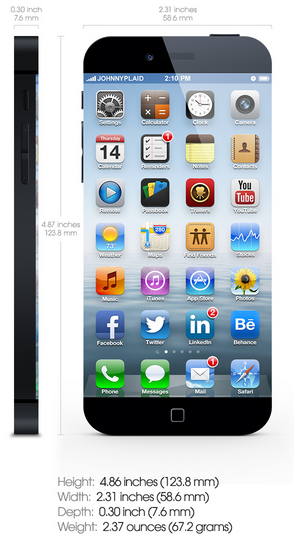
Apple iPhone 6 concept becomes more detailed – 4.5 inch edge to edge display and up to 20MP main camera

How about this for a concept Apple iPhone 6 model? A sleek 4.5 inch display that is completely edge to edge with resolution of 754 x 1296. The pixel density works out to 333ppi. That would compare with the 441ppi on the 5 inch screen used on the Samsung Galaxy S4 and the 326ppi on the Apple iPhone 5. No doubt, it would also deliver amazing movie experience for people to watch HD movies on iPhone 6. The complete elimination of the bezel actually shows off why one is needed. Without a bezel, your hand is covering up part of the display.

Apple iPhone 6 concept image

As long as we're basically dreaming for this concept, how about the dual 2.8GHz quad-core A7 processor? The touch enabled areas by the home button for this iOS 8/iPhone 6 concept would allow you to double tap to multitask, tap to go home, or customize the destination of the button yourself. The Apple iPhone 6 in this concept is made up of 60% carbon and 40% aluminum. This combination lets the device have the toughness of carbon but also offer the lightweight feeling of aluminum. And the aluminum-carbon body allows the Apple iPhone 6 concept to be water resistant in 2 feet of water for up to 30 minutes.

Tuesday, April 9, 2013

5 Best Free Camera Apps for Apple iPhones

Even at the very beginning, the Apple iPhone was not defined as a single mobile phone to let people access the internet and communicate with each other. It’s far more than a mobile phone. Just take the video and image shooting as example; iPhone has become the most used camera in the world in smartphone cameras. But as a simple device with an almost fully automatic camera, photo enthusiasts crave more manual control: more settings, more filters, more editing options. So, to satisfy diverse needs, today I have collected 5 alternative camera apps of iPhone camera. All of these 5 camera apps are Free. Let’s check them out below:

Instagram


Instagram - Pick from one of several gorgeous filtered effects or tilt-shift blur to breathe a new life into your mobile photos. Transform everyday moments into works of art you'll want to share with friends and family.


Friday, June 1, 2012

How to fix battery issues after upgrading to iOS 5.1.1

fix iPhone battery
Many people have reflected that the battery life of iPhone is not long enough as expected. In fact, the battery life problem is quite common in all smartphones. Today, let’s take a look on what Joe Aimonetti said about the battery issues, an experienced writer CNet.

Users have been reporting battery issues with their iPhones and iPads after upgrading to Apple's latest iOS update, version 5.1.1. A few simple procedures should get you back on your way.

After Apple's iOS 5.1.1 update was released last week, several users began reporting that their iOS devices had taken a significant battery life hit.

While the issues are not common to most users, it appears as though some iPhone and iPad owners found that the battery life they had come to expect was not apparent after updating to iOS 5.1.1 using Apple's over-the-air updating.

If you find your device is not getting the battery life it once was, a few troubleshooting tips provided by Apple Support Communities user sbaily4 could be of help.
First, be sure you have a good backup of your iPhone or iPad. Plug your device into your Mac or PC, open iTunes, and sync it.

Open Settings and tap to navigate to General > Reset. Tap "Reset All Settings" at the top of the screen. This option does not delete your content (music, videos, photos, or apps) so you won't lose anything important.

Your iPhone or iPad will then prompt you for basic setup information including reconnecting to your Wi-Fi network, as if you had just purchased the device. Now, use your device so that the battery drains completely to zero percent.
iPhone battery cover
Now, plug your device into a power source (preferably a wall outlet) and let it charge, undisturbed, to a full 100 percent. If your battery percentage is not showing up, open Settings and navigate to General > Usage. Under battery usage, flip the switch to On.

This process should resolve any battery issues resulting from the iOS 5.1.1 update, especially if it was performed over the air. If you find that your battery life is still not up to par, plug your device into your Mac or PC, open iTunes, and perform a restore -- first from a backup and then, if that does not resolve the issue, as a new device.

Have you experienced any issues, battery life or otherwise, after upgrading to iOS 5.1.1? Let me know in the comments!


Source from: http://reviews.cnet.com/8301-31747_7-57436506-243/how-to-fix-battery-issues-after-upgrading-to-ios-5.1.1/