Showing posts with label dvd creator. Show all posts

Monday, April 22, 2019

40% Discount off to Get Leawo Blu-Ray Creator in 2019 Easter Promotion Activity for Burning Videos and Photos to Blu-ray/DVD

Leawo Software, a company specialized in multimedia solutions and data management software, just released a great promotion with Blu-ray Creator at up to 40% discount. Users can resort to it to burn Blu-ray/DVD with more than 180 formats supported. Users could burn videos to Blu-ray/DVD disc, folder and/or ISO image file in BD50, BD25, DVD5 or DVD9. Users can also design disc menus and make Blu-ray/DVD slideshow at ease. This Leawo Easter promotion started from April 1 to April 30.

As an all-inclusive Blu-ray and DVD burning software combo, Leawo Blu-ray Creator could support more than 180 formats including MP4, AVI, MKV, FLV, MOV, WMV, MPEG, VOB, MTS, JPG for input files and convert them Blu-ray/DVD disc, folder or ISO image files. Users can burn Blu-ray and DVD from multiple origins such as camcorder video, smartphone recorded footage, download online videos, etc.


Besides the powerful burning function, Leawo Blu-ray Creator also offers more than 40 disc menu templates for users to choose and they can be burned together with the videos to Blu-ray and DVD. For each template, users can personalize the menu more specifically including adding background music/image/video, changing title position and adjusting text effect.

Apart from disc menu personalization, Leawo Blu-ray Creator also allows for photo slideshow creating and burning into Blu-ray and DVD. Users can import the photos and create a photo slideshow with 1 click. Editing features are also included such as adding background music, setting video effect, adjusting audio effect, etc.

For burning specific videos into Blu-ray and DVD, Leawo Blu-ray Creator also brings users multiple editing features. With these features, users are capable of trimming video length to save the perfect part, cropping video size to remove unwanted margin and space, adjusting video effects such as video contrast and brightness, adding watermark as a personal signature, creating 3D effect, creating chapters, removing noise, etc.

Price and availability 

Now users could get up to 40% discount on this multifunctional Blu-ray/DVD burning software. The original price of Leawo Blu-ray Creator is $39.95 for 1-year license and $59.95 for lifetime license. If purchasing during the promotion, users can get this burning software tool with $23.97 for 1-year license and $35.97 for lifetime license. And this discount is available for both Windows and Mac version. Apart from Leawo Blu-ray Creator, Leawo also provides sitewide coupon code with 30% discount. The sitewide coupon code will be valid for any purchase on Leawo website.
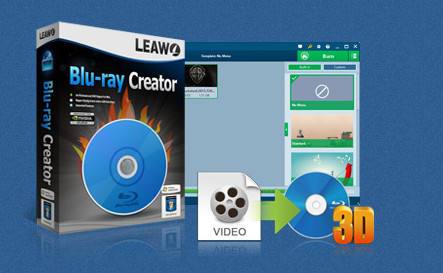

    Leawo Blu-ray Creator

    - Burn videos to Blu-ray/DVD disc, folder and/or ISO image file simultaneously.
    – Create photo slideshows from various photos and burn to DVD/Blu-ray disc easily.
    – One click operation to burn ISO image file to Blu-ray/DVD disc.
    – Edit output videos to add image or text watermark, trim video size, adjust effect, etc.
    – Create 3D Blu-ray/DVD movies with 6 different 3D effects.
Thursday, July 30, 2015

Top 5 DVD Authoring Software Apps

There are plenty of reasons you might want/need to put together a DVD. Sure, you might want to put together that family DVD to send to everyone at Christmas time - but there are also training videos, marketing materials, and even products. But without the right software, creating those DVDs would be an exercise in futility. For those on a tight-as-nails budget, I have found five free DVD authoring tools that are not only spot on for your spending limit, they are also fairly easy to use.

But will any of them meet your specific needs? Let's dive into the world of DVD authoring and find out. Remember, these aren't editors; you'll need your completed clips ready to use. With your video in hand, let's author some DVDs.

1. DVD Styler
DVD Styler is a cross-platform (Windows, Linux, Mac) authoring tool that allows you to convert your footage into a DVD-friendly format, but also create professional-quality DVD menus. The ability to create menus is especially important when creating marketing materials or products for your company. DVD Styler also features: Slideshow creation, add multiple titles and audio tracks, multiple supported video and audio formats (AVI, MOV, MP4, MPEG, OGG, WMV, MPEG-2, MPEG-4, DivX, Xvid, MP2, MP3, AC-3), use MPEG and VOB without having to re-encode, drag and drop interface, add buttons, text, and imported backgrounds to menus, and more. DVD Styler is open source and has a fairly shallow learning curve.

Monday, February 27, 2012

How to burn DVD from video in various video file formats

How to guide
Question 1: “I need something to join MP4 files from my video camera and put them on a DVD so it will play in a US player?”

Question 2: “What is the best video burner? Actually I have FLV, MKV and MP4 files and I want to burn a DVD. So what is the best one? Cause I don’t want to lose my audio video quality.”

Question 3: “Questions about burning DVDs?
Here is my situation: I have a Windows 7 laptop with a DVD RW drive. I have a youtube downloader software which downloaded a television series for me as MP4s. Now I am trying to burn those files to a dvd (DVD + R) so that I can view them on my television by using the free version of Nero 11 (before anyone asks, I cannot use Windows DVD maker). I've never burned a dvd before so my questions might be stupid:
1. Is it normal for a 4.38 GB disc to only be able to hold about 100 minutes worth of videos? Nero is telling me that I can only have 5 files on my disc, but this seems kind of low to me...
2. Is it possible to compress video files and still be able to burn them to a dvd and be able to watch it on my tv? If so, how might I go about it?
If you'd like to tell me how to compress files in general, I'm all eyes.”

The answers to the above questions could all be Yes, only with the help of a Video to DVD Burner, a DVD burning program which could easily convert videos to DVD discs or folders to help you burn DVD from videos in various video file formats like FLV, MKV, MP4, MPEG, AVI, WMV, WebM, etc. and watch videos on DVD players freely.
DVD Creator
The bellow guide shows a step-by-step tutorial on how to burn video to DVD:
1. Download the video to DVD burner program. (If you are using a Mac OS computer, then you need a Mac Video to DVD Burner.)
2. Install this video to DVD converter and start it to add source video files to this program.
3. If you want to customize your source video files and add 3D effect for output DVD files, click the Edit and 3D button on the menu bar respectively. (Optional operation)
4. Click the “Burn to DVD” button on the bottom right to set DVD menu and templates. Various menu and templates are provided for you to choose from. You can also customize the menu and templates you choose.
5. After setting disc menu and templates, click “Next” button to do more settings about DVD creation, including: volume label, output file type, output directory, output TV standard settings (different countries are in different TV standards, the following picture shows you the TV standards in different regions), aspect ratio, size, disc type, bit rate, etc.
DVD region
6. Click the “start” button to start to burn video to DVD with this video to DVD creator.

Notes for Question 3:
Your 4.38 GB disc could hold a 100 minutes worth of videos, but the video quality would be very low. You could compress video files and still make it able to burn to DVD discs. If you want to compress your video files, choose the DVD-5 (4.7GB) in Disc Type and set Bit Rate low enough to adjust the size of output DVD files in Step 5.

When the video to DVD burning progress finishes, you can stream the converted DVD files to your TV or DVD players to watch videos on DVD players or TV freely.